Skip to content

HiBit Uninstaller · Windows uninstaller & cleanup toolkit

HiBit Uninstaller: remove programs deeply, cut leftovers, end uninstall headaches.

Independent English guide for clear workflows, safer habits, and practical troubleshooting around HiBit Uninstaller, useful every day, not a replacement for vendor docs.

Deep removal Leftover scan Safer habits
Built for maintenance
Force uninstall logic
FAQs & scenarios
Portable & installed
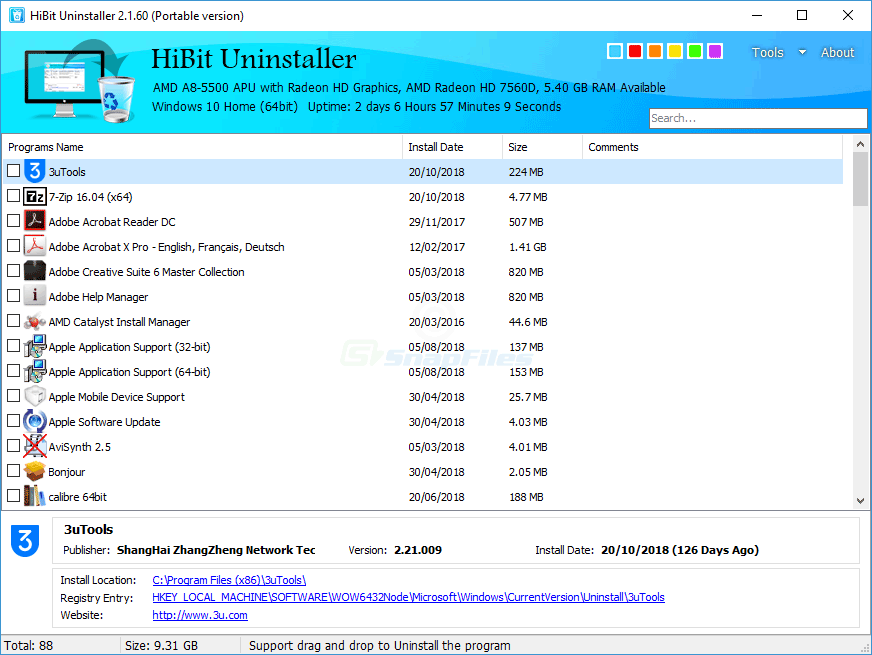
HiBit Uninstaller main window listing installed programs

Program capture, more views.

What HiBit Uninstaller is typically used for

Feature sets evolve between releases. Treat the list below as a capability map, then confirm labels in your installed build. Official pages and release notes remain the source of truth for version-specific details.

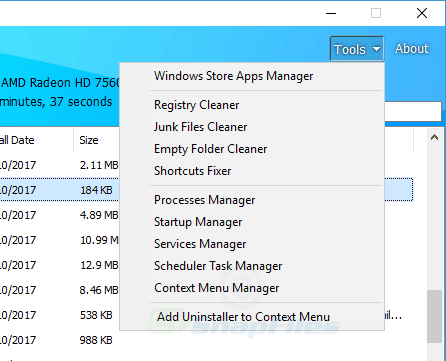
HiBit Uninstaller tools and maintenance options screenshot

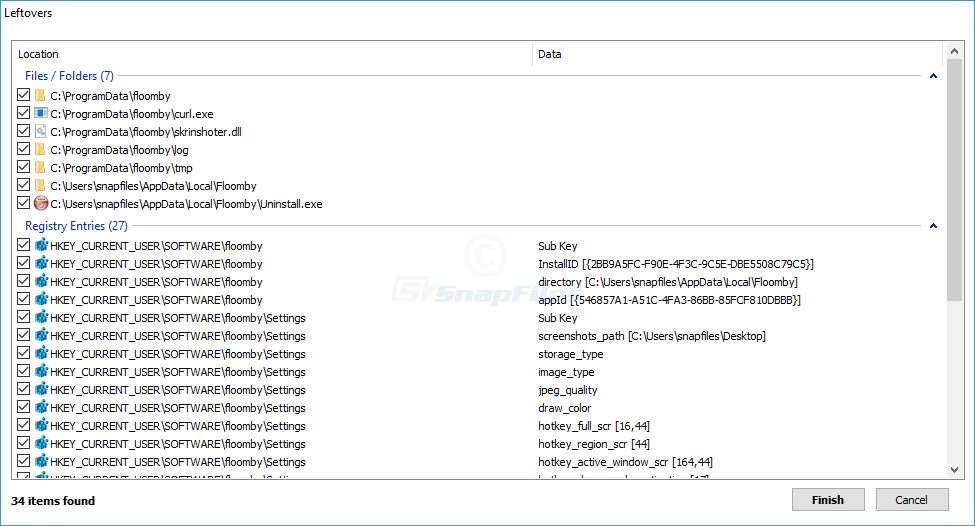
Cleaner uninstalls & leftover scanning

Many uninstallers remove the obvious entry but leave caches, service folders, scheduled tasks, or stray registry keys. HiBit is commonly praised for following up with scans aimed at orphaned data tied to removed software.

  • Batch removal when you are resetting a cluttered dev machine
  • Post-uninstall verification before you reinstall the same app
  • Hunting “ghost” entries that still appear in Settings
HiBit Uninstaller forced uninstall workflow screenshot

Forced uninstall for stubborn programs

If the vendor installer is broken, missing, or malware is resisting removal, a forced path can help, but it is also where mistakes happen. The best results pair forced removal with manual verification (folders, services, drivers).

  • Broken MSI entries after interrupted updates
  • Games with leftover launcher services
  • Trialware that reinstalls helper components

Microsoft Store & UWP apps

Useful when you want a single tool that bridges classic desktop programs and modern app packages, still confirm what Windows itself recommends for system components.

Browser extensions overview

A practical angle for adware cleanups: extensions sometimes survive app uninstalls. Review each item before removal, password managers and corporate policy extensions can look suspicious but are legitimate.

Maintenance bundle

Expect adjacent utilities such as junk cleanup, startup management, and context-menu tools in many builds. Treat “registry cleaner” features as conservative, review-first operations.

Interface preview

Reference captures only; your build may differ slightly. SnapFiles.

HiBit Uninstaller main window
Main window
HiBit Uninstaller tools panel
Tools panel
HiBit Uninstaller forced uninstall
Forced uninstall

HiBit Uninstaller

Download

Use the button below, the download opens in a new tab. Prefer the installer for a normal setup or portable when you need a USB-friendly build.

  • Built for Windows 11 / 10 / 8 / 7 on typical PCs.
  • A new download link is generated each time you reload this page.
Download now

Opens in a new tab. Reload this page for a fresh link.

Step-by-step style guides (problem-first)

Use these workflows as checklists. Adapt the order to your risk tolerance, enterprise PCs may require IT approval before deep removal.

1) Standard uninstall with a safety net

  1. Create a System Restore point (or ensure recent backups).
  2. Close the target application completely, check the system tray and Task Manager.
  3. Use the program’s own uninstaller when it is healthy; then let HiBit scan for leftovers.
  4. Reboot if the app installs services or drivers (audio, VPN, antivirus suites).

2) Forced uninstall: a disciplined approach

  1. Identify the install folder and publisher name, ambiguity causes collateral damage.
  2. Export or note license keys if the app is paid; some forced paths skip graceful deactivation.
  3. Run forced removal, then search for leftover services (services.msc) and scheduled tasks.
  4. Prefer “review lists” over blind bulk deletion for registry suggestions.

3) After adware or bundle installers

Bundled installers often add multiple programs with similar names. Uninstall in reverse order of installation when possible (browser extensions → helper apps → primary bundle).

  • Reset browser policies if hijackers keep returning (also check DNS and hosts file).
  • Scan with reputable antivirus after cleanup; uninstallers remove files but do not prove the system is clean.

4) Portable usage for technicians

Portable builds are handy on a USB stick. For repeatable audits, document what you removed and keep vendor installers available in case a rollback is needed.

Real-world scenarios people describe (anonymized patterns)

The stories below are composite summaries of common forum threads and helpdesk notes, useful for search intent (“won’t uninstall”, “reinstall fails”, “leftover service”). They are not testimonials and do not guarantee outcomes.

“The app vanished from Start, but Apps & Features still shows it and the uninstall button errors out.”

Typical path: forced uninstall + manual folder deletion + reinstall attempt after reboot. If Windows components are involved, run built-in repair tools before aggressive cleanup.

“I removed a VPN, yet a virtual network adapter and small service remained.”

Network stacks are sensitive. After uninstall, verify Device Manager adapters and services; keep vendor cleanup utilities handy for enterprise VPNs.

“A game uninstall left 200GB in a launcher cache folder.”

Uninstallers sometimes skip downloaded assets. Combine HiBit’s leftover ideas with Explorer size sorting, always confirm paths belong to the game, not shared libraries.

“Portable scan on a relative’s laptop found dozens of old updater tasks.”

Scheduled tasks are a frequent leftover category. Remove only tasks you can attribute to uninstalled software; keep OEM update tasks unless you understand the tradeoff.

Safety, verification, and “what could go wrong”

High-risk zones

  • Shared redistributables (VC++/.NET), removing the wrong package breaks many apps.
  • Audio interfaces, GPU tools, and motherboard utilities, often pair kernel drivers with user apps.
  • OneDrive/Windows sync components, confirm you are not breaking a managed work profile.

Habits that reduce regret

  • One change at a time: uninstall → reboot → verify → continue.
  • Keep a text log of removed registry keys when experimenting.
  • Prefer vendor uninstallers for security software before third-party forced removal.

Frequently asked questions

Is HiBit Uninstaller free?
It is widely distributed as freeware with full utility features, still download from official or trusted mirrors and verify file hashes when you have elevated threat models.
Will it speed up my PC?
Removing junk and disabling unnecessary startup items can help marginal machines. It is not a replacement for hardware upgrades, malware remediation, or fixing thermal throttling.
Does it replace Windows Settings uninstall?
Think of it as a complement: Windows handles the baseline; HiBit helps with follow-through, batch workflows, and edge cases like damaged entries.
Why do reinstalls fail until leftovers are gone?
Some installers detect existing keys, services, or shell extensions. Cleaning remnants with a careful scan, plus reboot, often resolves “already installed” errors that are actually partial states.
Search engines: what queries does this page target?
Examples: HiBit Uninstaller portable, force uninstall Windows 11, remove program leftovers, uninstall broken MSI, clean registry after uninstall, written as explanatory content rather than keyword stuffing.

Extended Knowledge Hub

This expanded section collects practical uninstall playbooks, edge-case troubleshooting, checklist logic, and decision frameworks. It is intentionally long-form so users can land on very specific queries and still find actionable guidance in one page.

Quick Triage Model

Before uninstalling anything, classify the software as user app, driver-dependent utility, security stack, or enterprise-managed package. Each class needs a different rollback strategy.

Risk-First Deletion Logic

Delete the obvious app shell first, then services, then scheduled tasks, then residual folders. Registry cleanup should be the final step, not the first move.

Recovery Preparedness

Archive installer files, preserve activation records, and keep one known-good restore point for each major cleanup session.

Scenario Library: What People Actually Face

A) Uninstall button does nothing

Often caused by broken uninstall strings or missing installer cache files. Try standard uninstall first, then force mode, then verify app data paths in both local and roaming profiles.

  • Check `Programs and Features` entry integrity.
  • Verify the app folder is still present and readable.
  • Search for stale uninstall executables and service remnants.

B) Installer says app already exists

This usually means one of the detection keys still exists. Remove leftover service names, startup entries, and shell integrations before trying reinstall.

  • Reboot after cleanup to unload locked files.
  • Clear temporary installation paths.
  • Run installer with elevated permissions only when required.

C) Portable utility on multiple PCs

Portable mode is efficient for diagnostics, but always document host-level changes. A portable tool can still modify services, tasks, and startup behavior.

  • Maintain a per-machine cleanup log.
  • Record exact item names removed.
  • Avoid aggressive bulk operations on work devices.

D) Security suite uninstall fails

Security products often include hardened services and drivers. Use vendor-provided removal tools first, then cleanup with conservative scans.

  • Disable tamper protection where required.
  • Perform restart cycles between stages.
  • Validate network and firewall profiles after removal.

Large Maintenance Checklists

Pre-Uninstall Checklist

  1. Create a restore point and confirm it completed.
  2. Export browser bookmarks if browser tools are involved.
  3. Backup application profiles you cannot regenerate quickly.
  4. Capture product keys and activation state if licensed software is present.
  5. Close related processes from Task Manager.
  6. Disable auto-restart updaters where applicable.
  7. Take screenshots of current startup entries for comparison.
  8. Document network adapter state for VPN/security products.
  9. Ensure you have admin rights if required.
  10. Set a rollback deadline and decision point.

Post-Uninstall Checklist

  1. Restart system and verify no related background process returns.
  2. Check startup impact and service list changes.
  3. Validate file associations and default app settings.
  4. Scan task scheduler for orphaned entries.
  5. Remove empty or obsolete app data directories.
  6. Confirm event logs do not show repeating uninstall errors.
  7. Run a lightweight malware scan if the app came from unknown bundles.
  8. Verify app is removed from Settings and legacy control panel views.
  9. Attempt clean reinstall only if required.
  10. Store notes for future maintenance cycles.

Common Mistakes and Better Alternatives

Mistake Why it hurts Safer alternative
Deleting random registry keys first Breaks unrelated apps and repair paths Uninstall app first, then verify key ownership
Bulk force-uninstall in one session Hard to isolate which removal caused issues One product at a time with reboot checkpoints
Removing shared redistributables blindly Can break many applications at once Leave shared runtimes unless clearly orphaned
Ignoring scheduled tasks Background jobs may recreate leftovers Audit and remove app-specific tasks only
Skipping restart after deep cleanup Locked files and drivers stay active Restart, then perform final verification

Power User Notes

Service and Driver Awareness

If software ships kernel components, treat it like infrastructure. Check driver store references and device manager status after uninstall workflows.

Startup Hygiene Strategy

Use startup cleanup as a secondary gain, not the main objective. Track each disabled entry and keep a 7-day observation window for side effects.

Forensic-Style Removal Logging

For repeated support tasks, maintain structured notes: target app, uninstall path, leftovers found, cleanup actions, reboot status, and final verification.

Search Intent Expansion Content

Users search uninstall topics in many forms: speed issues, storage recovery, stubborn entries, adware traces, and reinstall loops. The blocks below are written to answer those micro-intents directly and reduce bounce for long-tail traffic.

How to remove leftovers after uninstall

Look across app data folders, startup hooks, context-menu handlers, scheduled tasks, and service registrations. Keep changes reversible until system behavior is verified.

Why does Windows still show uninstalled apps?

Broken uninstall records and stale product references can linger. Correct removal typically includes both uninstall completion and metadata cleanup.

Can uninstall tools break my PC?

Aggressive, unreviewed deletion can. Conservative, verified workflows are usually safe. The real risk comes from speed-first cleanup without attribution.

Should I clean registry after every uninstall?

No. Clean only keys tied to removed software and only when there is a clear benefit, such as reinstall conflicts or broken shell remnants.

Mini FAQ Expansion

Does portable mode leave traces?
It can leave operational traces like logs, temp files, and recent-item references depending on usage and permissions.
What if uninstall removes too much?
Use restore points or reinstall shared dependencies. This is why staged cleanup with checkpoints is safer than aggressive one-click removal.
Can I use this on office laptops?
Only with policy approval. Managed endpoints may enforce software baselines and can revert or flag unauthorized cleanup operations.
Is startup cleanup always good?
Not always. Disable only non-essential entries you can identify confidently, then observe for several restarts.
What causes uninstall loops?
Leftover detection markers, locked files, active services, or damaged installer caches can all trigger repeated uninstall/reinstall loops.
Should I remove browser extensions too?
If they are tied to the removed software, yes. Keep trusted security and enterprise policy extensions that are still required.

Case Studies: Cleanup Timelines

Case 1: Developer workstation reset

A workstation with years of trial tools required deep cleanup before onboarding new build pipelines. The safe path was uninstall in categories, reboot after each category, and verify shell integration conflicts before continuing.

  • Day 1: remove obsolete IDE add-ons and launchers.
  • Day 2: remove monitoring agents no longer used.
  • Day 3: clear leftover context menu handlers.
  • Day 4: validate path variables and package managers.

Case 2: Shared family PC declutter

The machine had bundle software, helper updaters, and browser extensions installed by multiple users. Cleanup focused on user profiles, startup entries, and extension provenance instead of brute-force deletion.

  • Isolate by user profile before deleting data folders.
  • Audit scheduled tasks with unknown publishers.
  • Re-enable trusted OEM tasks when needed.
  • Test browser stability after extension removal.

Case 3: Reinstall blocked by remnants

A reinstall repeatedly failed due to stale detection markers and a surviving service account. The final fix required service cleanup, pending restart completion, and fresh installer cache extraction.

  • Clear stale service registrations and startup links.
  • Restart twice when driver components are involved.
  • Install with clean temp directory.
  • Record exact fix sequence for future incidents.

Troubleshooting Matrix

Symptom Likely root cause Validation steps Resolution path
Uninstall freezes at 90% Locked process or service dependency Check running process tree and services Stop services, retry, then reboot
App still listed in Settings Stale uninstall metadata Inspect uninstall registry entries Clean stale entry and verify display cache
Desktop shortcut returns after reboot Updater task recreating files Audit scheduled tasks and startup folders Disable offending task, remove remnants
Network issues after uninstall Adapter/driver remnants Check adapter stack and services Rollback driver changes, reinstall network stack
Reinstall reports existing version Leftover keys or install folder artifacts Inspect product markers and folder hashes Clean markers, restart, reinstall cleanly

Monthly Maintenance Plan

Week 1: Inventory

Map installed software, startup impact, storage hotspots, and obsolete tools. Prioritize targets by risk and impact.

Week 2: Controlled cleanup

Remove low-risk unused apps first. Track behavior across reboots and keep all changes documented.

Week 3: Deep validation

Review services, tasks, shell hooks, and leftover folders. Correct anomalies before the next cycle.

Week 4: Baseline hardening

Set startup policies, archive logs, and freeze a stable state. Use this baseline for future troubleshooting.

Glossary and Expert Notes

Orphaned entry

A reference to software that no longer exists, commonly seen in uninstall lists, startup records, and context menus.

Uninstall string

The command used by Windows to remove software. If broken, normal uninstall can fail silently.

Residual service

A background service left behind after app removal, often responsible for reappearing files or restart-time errors.

Reinstall loop

A cycle where installer and uninstaller fail repeatedly due to stale state markers and incomplete cleanup.

Shell extension residue

Menu handlers or Explorer integrations that persist after uninstall and can slow right-click behavior.

Conservative cleanup

A method that removes only attributable leftovers, with validation checkpoints between each action.

Role-Based Guidance Tracks

Beginner track

  • Uninstall one app at a time with reboot checks.
  • Avoid registry deletion unless absolutely necessary.
  • Prefer visual validation: app list, desktop, startup.
  • Keep a simple note of every action and outcome.

Technician track

  • Group removals by dependency type and vendor.
  • Check task scheduler and service state after each batch.
  • Run structured validation on drivers and shell handlers.
  • Document repeatable scripts for known app families.

IT admin track

  • Respect endpoint policy and approved removal methods.
  • Preserve audit trails for each software lifecycle event.
  • Verify security baseline integrity after cleanup.
  • Use maintenance windows and rollback runbooks.

Decision Tree: Remove or Keep?

Node 1: Is this software still required?

If no user or process relies on it, move to dependency checks. If yes, keep and optimize startup behavior instead of removing.

Node 2: Does it install drivers/services?

If yes, treat as medium/high risk and require staged removal with restart checkpoints and fallback plan.

Node 3: Is uninstall path healthy?

Use standard uninstall first. If broken, use force mode with manual validation for leftovers and shell traces.

Node 4: Did side effects appear?

If network, audio, or startup regressions appear, roll back or reinstall shared components before deeper cleanup.

Long-Form Q&A Bank

Why does cleanup feel slow?

Because safe cleanup includes verification stages, reboots, and residual checks. Speed without attribution often causes future errors.

Can old updaters affect boot time?

Yes, stale updater tasks and services can delay startup and trigger repeated file checks in the background.

Should I remove every leftover folder?

Remove only folders attributable to removed software. Shared caches and runtime folders may be used by other apps.

Is portable always safer?

Portable avoids full installation overhead, but cleanup actions still modify host state if you remove services, tasks, or entries.

How do I verify uninstall quality?

Compare before/after states for services, startup, tasks, shell extensions, app list entries, and relevant folder footprint.

When should I stop cleanup?

Stop when evidence becomes ambiguous. Conservative endpoint hygiene is better than aggressive uncertain deletion.

Can shell menus break after uninstall?

Yes. Orphaned shell handlers can slow Explorer or cause menu glitches, especially after forced removals.

Why keep operation logs?

Logs help diagnose regressions, speed up future cleanup cycles, and provide rollback context in support environments.

Do I need admin rights always?

Not for every action, but service, driver, and machine-level uninstall cleanup often requires elevation.

Can anti-cheat leftovers remain?

They can remain as services/drivers, so gaming stack cleanup should include service and driver-state verification.

Operational Playbooks

Playbook 01: Broken Uninstaller

  1. Attempt standard uninstall and capture exact error.
  2. Close running processes and retry.
  3. Switch to force uninstall and scan leftovers.
  4. Check scheduled tasks and startup entries.
  5. Reboot and verify app list consistency.
  6. Attempt reinstall if software is still required.

Playbook 02: Cleanup After Bundle Installers

  1. List all apps installed in the same timeframe.
  2. Remove browser extension residue first.
  3. Uninstall helper tools and launchers next.
  4. Scan file system and task scheduler leftovers.
  5. Reset browser startup/home/search if altered.
  6. Run final malware check and baseline capture.

Advanced Comparison: Approaches

Approach Speed Safety When to use
Standard uninstall onlyFastHighHealthy installers and low-risk software
Standard + leftover scanMediumHighBest default for most maintenance cycles
Force uninstall + manual checksSlowMediumBroken uninstall paths or stubborn remnants
Bulk aggressive cleanupFastLowOnly controlled lab/testing scenarios
Download